Silence Removal AI for Talking-Head Videos: A Faster Edit Workflow
Learn how silence removal AI speeds up talking-head edits, cuts dead air cleanly, and helps creators publish faster with a practical workflow.

By Movi AI Team
Movi AI Editorial Team
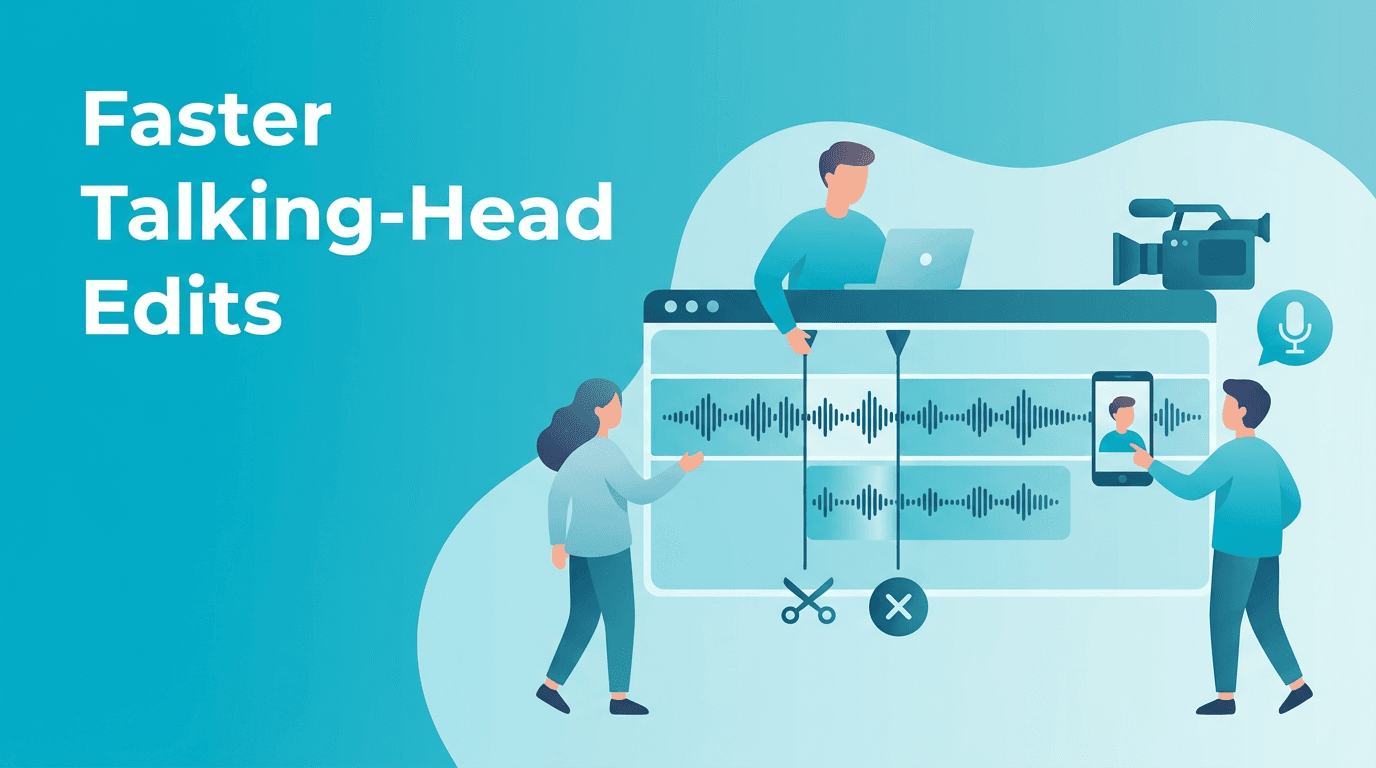
If you edit interviews, explainers, or YouTube monologues, silence removal AI can save hours by cutting dead air and tightening pacing without frame-by-frame trimming.
Why talking-head creators waste so much time
Manual cleanup often means zooming into waveforms, hunting for pauses, and making dozens of tiny cuts. That process works, but it is slow, repetitive, and mentally draining when you publish often.
- Before: long pauses, repeated breaths, slow pacing, bloated timelines
- After: tighter delivery, cleaner watch time, fewer manual cuts, faster exports
- Best use cases include YouTube commentary, online courses, product explainers, interviews, and webinar clips
A practical silence removal AI workflow
1. Start with clean source audio
AI tools work best when the voice track is clear. Record close to the mic, reduce room echo, and keep background noise low so pauses are easier to detect accurately.
2. Set a pause threshold
Choose how aggressive the cleanup should be. For fast YouTube videos, you can cut most pauses over a short threshold. For educational content, keep slightly longer gaps so the delivery still feels natural.
3. Review the automatic cuts
Do not accept every cut blindly. Scan the timeline for moments where a pause adds emphasis. A good silence removal AI workflow keeps energy high without making the speaker sound rushed.
4. Add captions after trimming
Generate subtitles after your pause cleanup so your transcript matches the final timing. This avoids extra correction work later and keeps on-screen text accurate.
"The fastest edit is not the one with the most cuts, it is the one where every cut improves clarity."
Manual editing vs silence removal AI
- Manual editing: precise, but slow for long recordings and repetitive cleanup
- Silence removal AI: much faster for first-pass trimming, especially on dialogue-heavy content
- Best approach: use AI for the repetitive work, then make human decisions on emphasis, rhythm, and storytelling
Want a faster way to create videos with AI?
Use *Movi AI* to turn ideas, images, and footage into polished AI videos faster, whether you are making shorts, promos, or creator content.
Download Movi AIWhere Movi AI fits into the workflow
Once your talking-head pacing is fixed, you can use *Movi AI* to build supporting visuals from text prompts, animate stills, or generate extra scenes that make simple speaking videos more engaging.
Common mistakes to avoid
- Cutting every pause, which can make speech feel unnatural
- Ignoring breaths that help transitions sound human
- Using poor audio input and expecting perfect automatic detection
- Adding captions before the final edit, which creates extra cleanup work
Frequently Asked Questions
How do I remove pauses from a video automatically?
Use an AI editor that detects silence in speech, applies automatic cuts, and then review the timeline to keep natural emphasis where needed.
Is silence removal AI good for YouTube videos?
Yes. It is especially useful for talking-head videos, tutorials, interviews, and commentary where dead air slows pacing.
Can silence removal AI replace manual editing?
Not completely. It handles repetitive trimming well, but creators should still refine rhythm, storytelling, and emphasis manually.
What type of videos benefit most from silence removal AI?
Dialogue-heavy formats like courses, webinars, podcasts on video, interviews, and solo creator videos benefit the most.
Movi AICreate stunning AI videos in seconds!
Turn your ideas into professional videos with the #1 AI video maker.
Download Movi AI