Ken Burns Effect for Product Photos, Listings, and Memories
The Ken Burns effect is a simple way to turn photo collections into motion-rich videos for products, property listings, family memories, and social posts without advanced editing.

By Movi AI Team
Movi AI Editorial Team
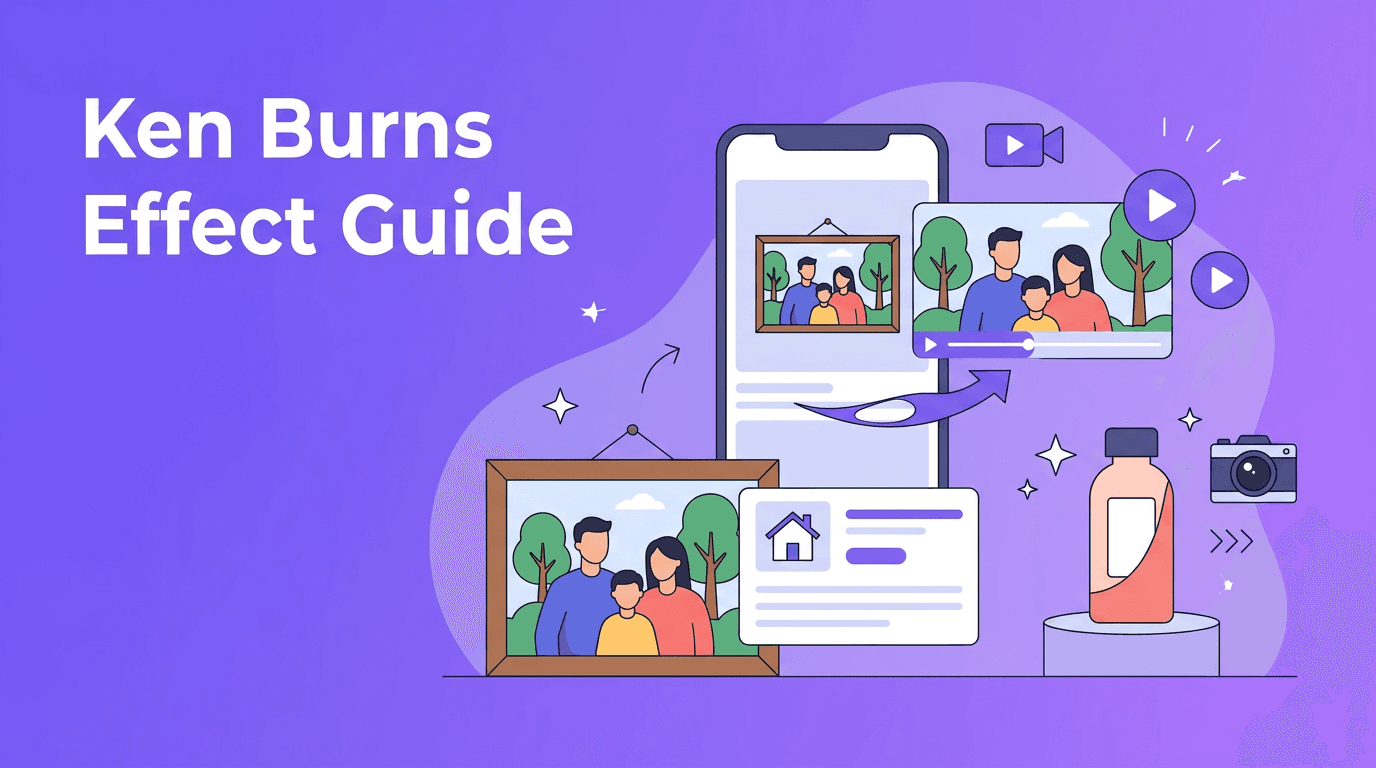
The Ken Burns effect is one of the easiest ways to create motion from a single image. If you want product shots to feel premium, property photos to feel immersive, or family pictures to feel more alive, this simple move can make a still frame feel like a video.
What the Ken Burns effect actually does
At its core, the Ken Burns effect uses slow pans and zooms across a photo. Instead of showing the full image all at once, the camera appears to travel through it. That motion guides the viewer's eye and adds emotion, focus, and pacing.
- Pan moves across the image from left to right, right to left, up, or down.
- Zoom in creates intimacy and draws attention to a face, product detail, or room feature.
- Zoom out reveals context, useful for interiors, landscapes, and before-and-after stories.
- Parallax-style layering can separate foreground and background for added depth when supported by AI tools.
"A small movement can make a still image feel like a living moment."
Why this effect works so well for modern content
Short-form platforms reward motion. Even subtle movement can help a post hold attention longer than a static upload. The Ken Burns effect is especially useful when you have strong photography but limited video footage.
Use case 1: Product photos that feel more premium
E-commerce sellers can animate hero images, packaging shots, or lifestyle scenes. A slow zoom toward a label, texture, or feature can make a simple listing feel more polished. This is helpful for beauty, fashion, food, home decor, and tech accessories.
- Start wide on the full product, then move closer to the key detail.
- Use a clean source image with sharp edges and good lighting.
- Keep movement slow so the clip feels elegant, not distracting.
- Add text overlays later for price, feature callouts, or a limited-time offer.
Use case 2: Real estate photos that feel like mini tours
Agents can use the Ken Burns effect to create walkthrough-style videos from listing photos. A gentle push into a bright kitchen or a slow pan across a living room can make a static gallery feel more immersive and help buyers understand layout and atmosphere.
Use case 3: Family memories and old photos
Old portraits, travel snapshots, and wedding photos gain emotional impact when motion is added thoughtfully. A subtle zoom into a smile or a slow move across a group photo can help viewers notice expressions and details that might otherwise be missed.
How AI improves basic photo motion
Classic editing tools can simulate camera movement, but AI can do more. In apps like *Movi AI*, you can start from an image and generate dynamic clips that feel richer than a basic slideshow. AI can help create depth, stylized motion, and scene transitions from a single frame, saving time for creators who want faster results.
Animation styles to try
- Cinematic pan for landscapes, interiors, and storytelling scenes.
- Slow zoom for portraits, product highlights, and emotional moments.
- Parallax motion for layered scenes with clear foreground and background separation.
- Character animation for photos with people or pets when you want a more lively result.
Best practices for source photos
- Choose high-resolution images so crops and zooms still look sharp.
- Avoid heavy blur, compression, or low-light noise.
- Leave extra space around the subject when possible, which gives motion more room.
- Use photos with a clear subject so the animation has a focal point.
- For old pictures, restore dust and scratches first if possible.
Try smarter photo motion with Movi AI
Turn still images into eye-catching clips for products, property listings, memories, and social posts with AI-powered video creation on mobile.
Download Movi AIA simple workflow you can follow today
- Pick 5 to 10 strong photos with a clear story or purpose.
- Decide what the viewer should notice first in each image.
- Apply one motion style per photo to keep the sequence consistent.
- Keep clips short, usually 2 to 4 seconds per image.
- Add captions, music, or voiceover after the motion is set.
- Export in vertical format for Reels, TikTok, and Shorts when needed.
When to use subtle motion and when to use stronger animation
Subtle motion works best for luxury products, sentimental memories, and interior spaces. Stronger AI animation can work well for social media teasers, promo content, and attention-grabbing ads. The right choice depends on your goal, platform, and audience.
Frequently Asked Questions
What is the Ken Burns effect in video editing?
It is a technique that adds slow panning and zooming to a still image so it feels more dynamic and cinematic.
Can I turn a single photo into a video with AI?
Yes. AI tools can create motion, depth, and stylized animation from one image, making it possible to build short videos from still photos.
Is the Ken Burns effect good for real estate and product photos?
Yes. It helps guide attention through rooms, product details, and lifestyle scenes, making static photos more engaging.
What kind of photos work best for motion effects?
High-resolution images with clear subjects, good lighting, and enough space for panning or zooming usually produce the best results.
Movi AICreate stunning AI videos in seconds!
Turn your ideas into professional videos with the #1 AI video maker.
Download Movi AI