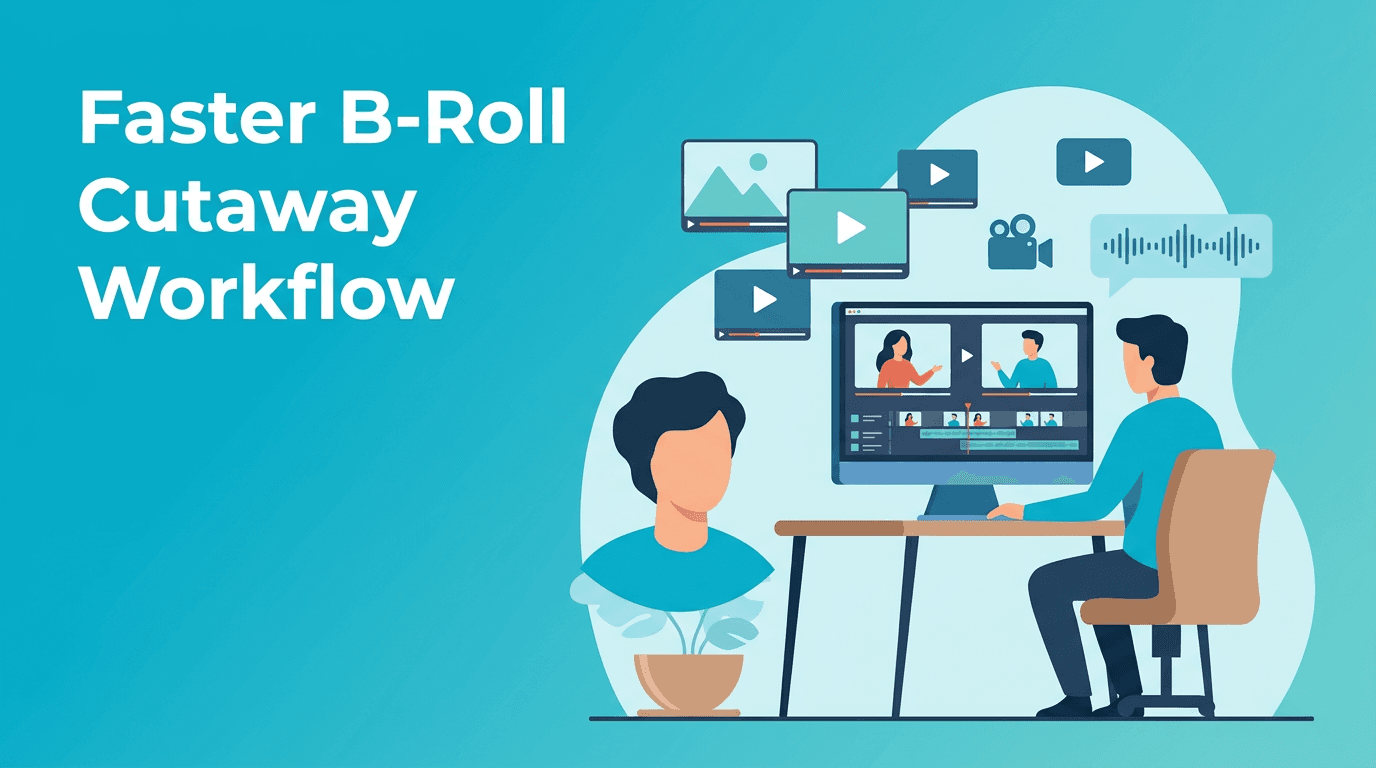
B-Roll Automation AI: Faster Cutaway Edits for Talking-Head Videos
Learn a practical B-roll automation AI workflow to find, generate, and place cutaways faster in talking-head videos, with tips to beat manual editing time.

By Movi AI Team
Movi AI Editorial Team
B-roll automation AI can dramatically reduce the time it takes to edit talking-head videos, especially when you are constantly searching for cutaways, reaction shots, and visual support clips. Instead of dragging every insert manually, creators can use a smarter workflow to plan, generate, and place B-roll faster while keeping the final edit clean and engaging.
Why B-roll slows editors down
In many YouTube and social content workflows, the hardest part is not the main cut. It is filling dead space with relevant visuals. Manual B-roll editing often means scrubbing footage, renaming clips, checking timing, and redoing placements after script changes. That adds friction fast.
- Before: You watch the timeline line by line and hunt for every supporting visual by hand.
- After: You identify visual beats first, then use AI tools to generate or organize matching clips much faster.
- Result: More consistent pacing, fewer blank talking-head moments, and less editing fatigue.
A practical B-roll automation AI workflow
1. Mark visual beats from the script
Start by highlighting nouns, actions, locations, and outcomes in your script. These are your likely cutaway moments. If the speaker says "launch," "dashboard," "client call," or "camera setup," those become clear prompts for B-roll selection or generation.
2. Group moments by visual type
- Explainer visuals for concepts like growth, workflow, editing, or analytics
- Literal visuals for objects, places, screens, hands, or products
- Atmospheric visuals for pacing, emotion, or transitions between points
3. Generate missing clips with Movi AI
When you do not have the exact supporting footage, *Movi AI* can help you create video clips from text prompts, images, or source footage. This is useful when your edit needs quick insert shots, concept visuals, or stylized fillers that match your topic without booking a shoot.
Need B-roll without another shoot?
Use *Movi AI* to create AI video clips from prompts, images, or existing footage and fill timeline gaps faster.
Download Movi AIHow to place B-roll without cluttering the timeline
A good B-roll automation AI workflow is not about stuffing visuals everywhere. It is about placing cutaways at moments where attention dips or clarity needs help. Aim for short, purposeful inserts that support a phrase, not random coverage on every sentence.
- Use B-roll to cover jump cuts or tighten speech pacing.
- Place visuals when a new concept is introduced.
- Keep many inserts between 1 and 3 seconds for short-form pacing.
- Return to the speaker when emotion, credibility, or instruction matters most.
"The fastest edit is not the one with the most clips. It is the one where every cut has a job."
Manual editing vs B-roll automation AI
Manual workflows give full control, but they are slower when you repeat the same decisions across every video. B-roll automation AI helps by accelerating clip discovery, prompt-based generation, and structure planning. Editors still make the final creative call, but they spend less time on repetitive search tasks.
- Manual: Best for highly custom storytelling and precise brand control
- AI-assisted: Best for faster drafts, repeatable formats, educational videos, and weekly content pipelines
- Hybrid: Best for most creators, use AI for prep and options, then refine manually
Tips to get better results
- Write prompts around camera action, subject, and setting.
- Keep generated B-roll visually simpler than your hero footage.
- Use recurring visual categories so your channel style stays consistent.
- Build a reusable prompt bank for your niche, such as tech, fitness, education, or business.
Frequently Asked Questions
What is B-roll automation AI?
B-roll automation AI is a workflow that uses AI to help identify, generate, organize, or suggest supporting video clips for your main edit.
Can AI generate B-roll from text prompts?
Yes. Tools like *Movi AI* can create video clips from text prompts, images, or existing footage, which helps fill missing cutaway shots quickly.
Is AI B-roll better than manual editing?
Not always. AI is usually faster for generating options and speeding up repetitive tasks, while manual editing is still important for taste, timing, and final polish.
Who should use B-roll automation AI?
YouTubers, social media creators, educators, and video editors with repeatable talking-head formats can benefit the most from this workflow.
Movi AICreate stunning AI videos in seconds!
Turn your ideas into professional videos with the #1 AI video maker.
Download Movi AI