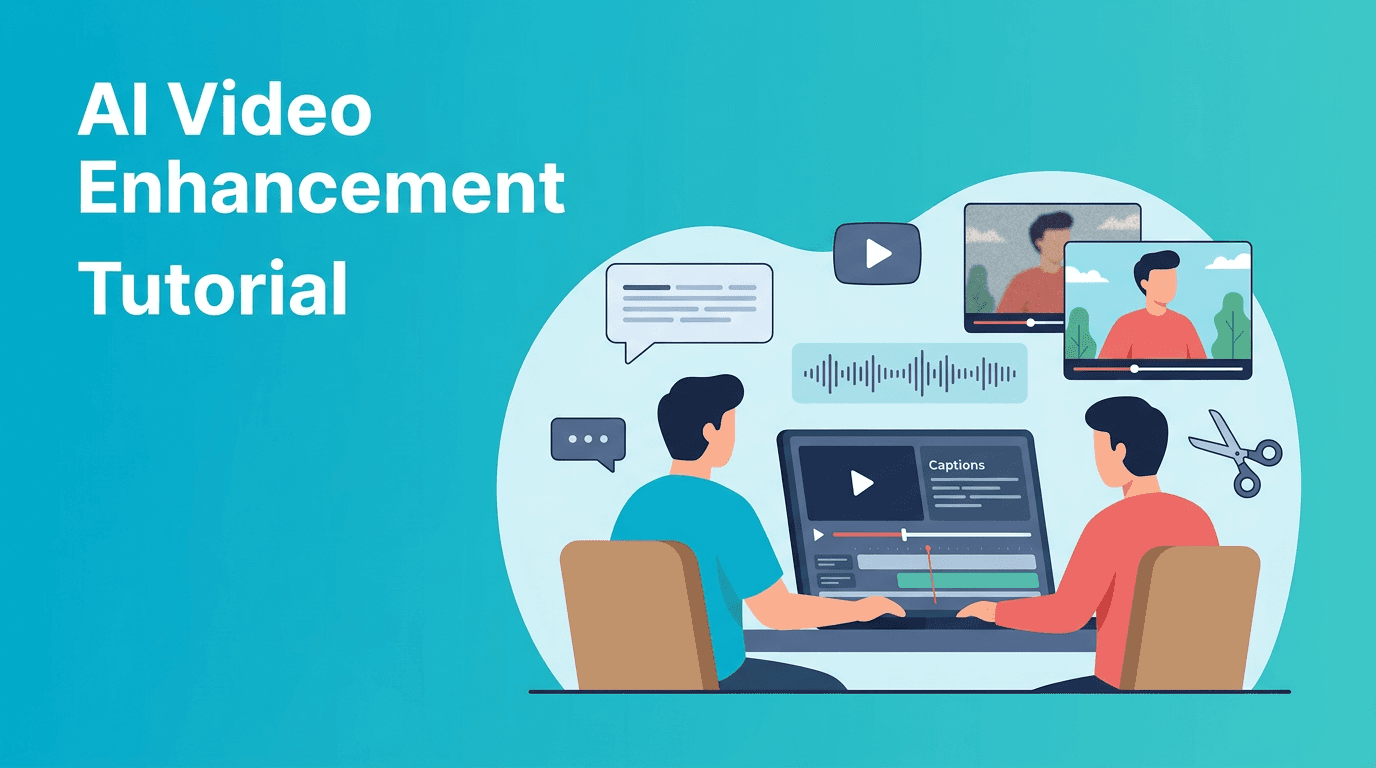
AI Video Enhancement Tutorial: Faster Edits With Smarter Tools
Learn ai video enhancement workflows for color grading, captions, background removal, upscaling, audio cleanup, and object removal to edit faster with AI.

By Movi AI Team
Movi AI Editorial Team
AI video enhancement is no longer just a bonus feature. It is becoming the fastest way for creators to clean footage, improve quality, and finish edits with less manual work. If you edit YouTube videos, social clips, tutorials, or client content, learning how to use AI for repetitive tasks can save hours every week.
Why creators are switching to AI-first editing
Traditional editing still matters, but many steps are repetitive: matching color, writing captions, masking backgrounds, removing distractions, fixing noisy audio, and exporting multiple versions. An *ai video editor* can automate those tasks so you can focus on pacing, storytelling, and creative decisions.
- Manual workflow: frame-by-frame corrections, hand-written subtitles, detailed masking, and repeated cleanup passes.
- AI workflow: automatic detection, smart enhancement, one-tap cleanup, and faster first drafts.
- Best use case: let AI handle the technical base, then refine the final creative polish yourself.
Step 1: Use AI for faster color grading
Color grading often eats up more time than creators expect. With ai video enhancement, you can start by letting AI balance exposure, contrast, white balance, and saturation before making creative tweaks. This gives you a solid base grade in minutes instead of building every correction manually.
Before and after: what changes
- Before: flat footage, mixed lighting, skin tones that shift between shots.
- After: more balanced highlights, cleaner shadows, and better consistency across clips.
- Time saved: 15 to 45 minutes per project, depending on footage quality.
Practical tutorial: import your clips, group shots from the same scene, run AI auto-correction, then compare clips side by side. Lock the improved baseline look first. After that, add your creative style manually so the final result still feels intentional, not overprocessed.
Step 2: Remove backgrounds without frame-by-frame masking
An ai background remover video workflow is ideal for talking-head content, product explainers, tutorials, and short-form promos. Instead of drawing masks manually around a person in every shot, AI can detect the subject and separate them from the background automatically.
How to get cleaner background removal
- Use clips where the subject is clearly separated from the background.
- Avoid heavy motion blur when possible.
- Check edges around hair, hands, and fast movement.
- Replace the background with a simple visual first, then add design elements later.
In *Movi AI*, you can build quick creator visuals by combining subject isolation with generated or imported backgrounds. This is useful when you want a polished studio look without reshooting your footage.
Step 3: Improve low-quality footage with AI upscale tools
If you work with old exports, compressed clips, or footage pulled from social platforms, ai video upscale tools can help restore clarity. They do not create perfect detail from nothing, but they can sharpen edges, reduce compression artifacts, and make footage feel more usable.
When AI upscaling works best
- Best for: slightly soft footage, lower-resolution screen recordings, archived clips, and repurposed social videos.
- Less effective for: severely blurry footage, extreme digital noise, or badly exposed video.
- Tip: upscale after trimming your selects, not before, so you process only what you will actually use.
A smart ai video enhancement workflow means you decide which clips deserve upscaling. Hero shots, intros, product close-ups, and key b-roll moments usually benefit most.
Step 4: Add captions automatically and clean them fast
Creators who publish on YouTube Shorts, TikTok, Reels, and tutorials should treat auto caption video tools as essential. AI can transcribe speech, generate timed subtitles, and give you a strong first draft almost instantly.
Caption workflow you can use today
- Upload your final spoken-content edit first.
- Run automatic transcription.
- Correct brand names, jargon, and names manually.
- Break long subtitle lines into shorter mobile-friendly chunks.
- Highlight keywords for better retention and scanning.
Compared with manual typing, AI captions can cut subtitle creation from an hour to a few minutes. That is one of the easiest ways to learn how to edit video with ai and feel an immediate payoff.
Step 5: Remove unwanted objects and distractions
Object removal is one of the most practical AI tools for busy editors. Small distractions like exit signs, background clutter, cables, random people, or unwanted props can pull attention away from your message. AI can analyze surrounding frames and fill the removed area more quickly than manual cleanup.
- Use object removal for small or medium distractions, not major scene changes.
- Review moving shots carefully, because motion makes cleanup harder.
- Always zoom in on repaired areas before exporting.
- If the result looks artificial, cut away with b-roll instead of forcing the fix.
Step 6: Enhance audio before your final export
Great visuals will not save weak audio. AI audio enhancement can reduce background noise, level speech, improve clarity, and make dialogue easier to understand. For tutorials and YouTube videos, this often matters more than a small visual upgrade.
Simple AI audio cleanup checklist
- Remove hum, hiss, and room noise first.
- Use voice enhancement to improve speech presence.
- Normalize loudness across clips.
- Check music ducking so the voice stays clear.
- Listen on speakers and headphones before final export.
A lot of creators spend too much time polishing visuals while ignoring sound. In practice, stronger audio usually leads to better watch time and fewer drop-offs.
AI editing workflow vs manual editing workflow
The best comparison is not AI versus human editing. It is AI for repetitive tasks versus manual work for creative judgment. A manual workflow gives you full control, but it is slower for routine cleanup. An *ai video editor* speeds up the technical passes so you can spend more energy on structure, hooks, and story.
- Manual editing wins when you need precise artistic control on every frame.
- AI editing wins when you need speed, consistency, and scalable production.
- Hybrid editing wins overall for most creators, because it combines fast automation with human taste.
"The smartest editors do not use AI to replace creativity. They use it to protect time for creativity."
A practical AI editing stack for creators
If you want a repeatable process, use this order: rough cut, AI captions, audio cleanup, color correction, background removal if needed, object removal, then upscale selected clips last. This sequence helps you avoid reprocessing the same footage over and over.
Want to speed up your edit workflow?
Try *Movi AI* to create and enhance videos with AI-powered tools for faster production and cleaner results.
Download Movi AIWhen choosing the best ai video editor app, look for speed, caption accuracy, flexible input options, and tools that support real creator workflows. *Movi AI* is especially useful if you want to create from text, images, or existing footage while keeping your production process efficient.
Final thoughts on how to edit faster with AI
If you are still doing every correction manually, start small. Pick one repetitive task this week, like captions, audio cleanup, or color balancing, and automate it first. Once you see the time savings, add more AI steps gradually. That is the simplest path to mastering ai video enhancement without losing creative control.
Frequently Asked Questions
What is ai video enhancement?
AI video enhancement uses machine learning tools to improve footage quality, automate corrections, and speed up editing tasks like upscaling, captioning, and cleanup.
How do I edit video with AI?
Start with one task such as automatic captions, color correction, or audio cleanup. Then build a hybrid workflow where AI handles repetitive steps and you handle final creative decisions.
Can AI upscale low-quality video?
Yes, AI can improve clarity, reduce artifacts, and sharpen edges in many clips. Results are best on slightly soft or compressed footage, not severely damaged video.
What is the best ai video editor app for creators?
The best app depends on your workflow, but creators should look for tools that support fast captions, enhancement, cleanup, and flexible video generation. Movi AI is a strong option for quick, AI-powered video creation and editing.
Movi AICreate stunning AI videos in seconds!
Turn your ideas into professional videos with the #1 AI video maker.
Download Movi AI